

The base labeling loop in OvalBee, built for teams that label data and want to see and control the process.
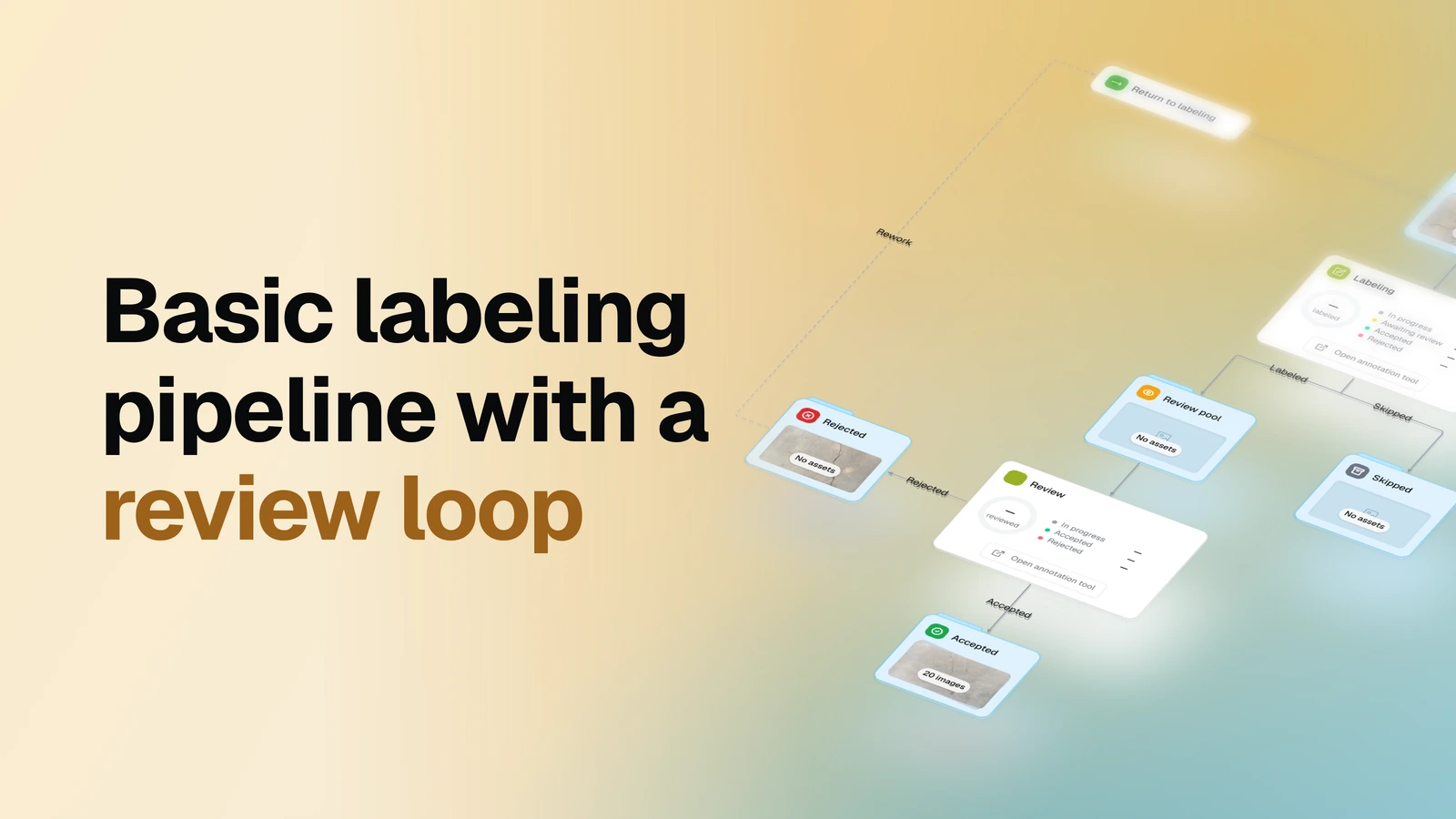
Main idea: images go through a labeling and review loop. Rejected images return to labeling, and only accepted ones reach the final dataset.
The graph is built to be clear and easy to work with: see where each image is, check its status and detailed statistics, and tune any stage. Treat it as a starting point and customize it for your needs by adding nodes: pre-labeling, quality checks, an expert stage and more.
Setup
You do not need to prepare anything in advance. When you first open the template, the setup wizard walks you through every step:
| Question | What you do |
|---|---|
| 1. What will you label? | Pick or create the classes and tags. |
| 2. Who does the work? | Choose labelers and reviewers from your workspace. One person can hold both roles. |
| 3. Where are the images? | Pick a dataset for the labeling pool, or start with an empty one and add images later. |
| 4. Ready? | Press Start. |
- Before Start: nothing is created yet. Stop at any moment and come back later with the Finish setup chip.
- After setup: OvalBee creates everything for you. No further configuration needed.
You can bring images in several ways: drop files from your computer, copy them from Supervisely or import a public dataset from Dataset Ninja. To start, use Import images by drag & drop. Images added to the labeling pool reach your labelers right away.
Key concepts
The Labeling and Review nodes drive the pipeline: people work there and decide where each image goes next. The other nodes are mostly datasets that hold the images of each step.
Buttons route images. The settings of these nodes have a Decision buttons field: a list of pairs, each a button name and a dataset. Every pair becomes a button in the annotation tool, and pressing it sends the image with its annotations to the matching dataset.
For example: button Submit → dataset Review pool (pressing Submit in the tool sends the image to the review pool).
Every image is always in exactly one dataset on the graph. Some of these datasets also have names of their own:
- Pool. A dataset where images wait for the next person: the labeling pool for labelers, the review pool for reviewers.
- Personal queue. Each person's own small batch of images, taken from the pool. When you finish an image, a new one takes its place.
Pipeline
| Node | What happens | Docs |
|---|---|---|
| Labeling pool | Images wait here for labelers. | Dataset |
| Labeling | Labelers annotate images and press Submit or Skip. | Labeling |
| Review pool | Submitted images wait here for reviewers. | Dataset |
| Review | Reviewers check each image and press Accept or Reject. | Review |
| Accepted | Images that passed review, with their annotations. This is your result. | Dataset |
| Skipped | Images a labeler skipped, kept apart from the loop. | Dataset |
| Rejected | Images a reviewer rejected, waiting for rework. | Dataset |
| Return to labeling | Moves rejected images back to the labeling pool with their annotations. | Move |
Return to labeling runs when you start it, so you decide when rework begins. To send rejected images back automatically, open the node, click the gear next to Run and set a schedule, for example every 15 minutes.
Core nodes
The Labeling and Review nodes are the engine of this loop. Their main features and settings:
- Open annotation tool: the button on the node card opens the tool for you, with your personal queue.
- Statistics: the button on the node card opens full statistics for this node: who did what, time spent, the history of each image and CSV export.
- Live chart: the node card shows the current status in real time: images in progress and done, in total and per person.
- Actions: after working on an image, the labeler or reviewer presses one of the buttons (Submit / Skip or Accept / Reject), and the image moves to its dataset.
- Ontology: set the classes and tags for labeling in the node sidebar.
- Labelers can add classes and tags: lets labelers extend the classes and tags of the chosen ontology right from the tool (Labeling only).
- Batch size: each person's personal queue holds 10 images by default and refills from the shared pool as they work.
- Return unclaimed work after: the longest time an image can stay in someone's queue (120 minutes by default), after which it goes back to the shared pool.
- Any team size: the graph works with any number of labelers and reviewers, each with a personal queue that refills from the shared pool.
- Removing a labeler: their unfinished images return to the shared pool, and the others take them.
- Rejected images: when you run the Return to labeling node, they go back to the shared pool with their annotations, and the first free labeler takes them.
Results
- Accepted. Your labeled dataset: every image here passed review and keeps its annotations. Use it for training or connect it to the next step of your pipeline.
- Skipped. Images a labeler set aside: unclear, broken or out of scope. Open the dataset to look through them, then delete them, send them back to the labeling pool or route them to a specialist.
- Rejected. A temporary stop. Images stay here until Return to labeling sends them back.
Next steps
Start with this loop and grow it as your project needs:
- Labeling with expert — send hard cases to a specialist while routine work goes straight to review.
- Labeling with auto quality check — rule-based checks screen every submission before a reviewer sees it.
- Active learning with live training — a model trains while you label and picks the images worth labeling next.
- Train EdgeCrafter Detector on Images — train a detector on your accepted dataset.