

Blood smears are some of the most tiring images to label. Every image is full of small round cells that look almost the same, and the cells that matter are rare: red blood cells infected with the malaria parasite and white blood cells. In the original dataset, an expert malaria researcher labeled the cells by hand. This work needs an expert’s eye, and it is slow.
In this post we turn hours of drawing boxes into a quick check, with the same quality. The expert labels only a few images. A model trains on them right during labeling, and soon the next images arrive with the boxes already drawn. People only check them.
The graph is built from three ready blocks from the template library: Import images by drag & drop, Live training module and Basic labeling pipeline, here in a simple form without review. Add the three blocks, connect them, and the setup wizard configures them for your data. You can add the Live training module to any labeling graph the same way.
Here is the live graph from this run. Open any node to see its settings.
How it works
The idea is simple: labeling and training happen at the same time. The scheme below shows it in three acts:
- Label a few images by hand. People label the first images themselves. Every submitted image goes to two places at once: to the labeled dataset, as usual, and to live training. The model learns from the very first image.
- The model starts helping. The model keeps learning and now also sends its boxes back to the labeling tool. People still add, fix or delete a few of them, and each image goes faster.
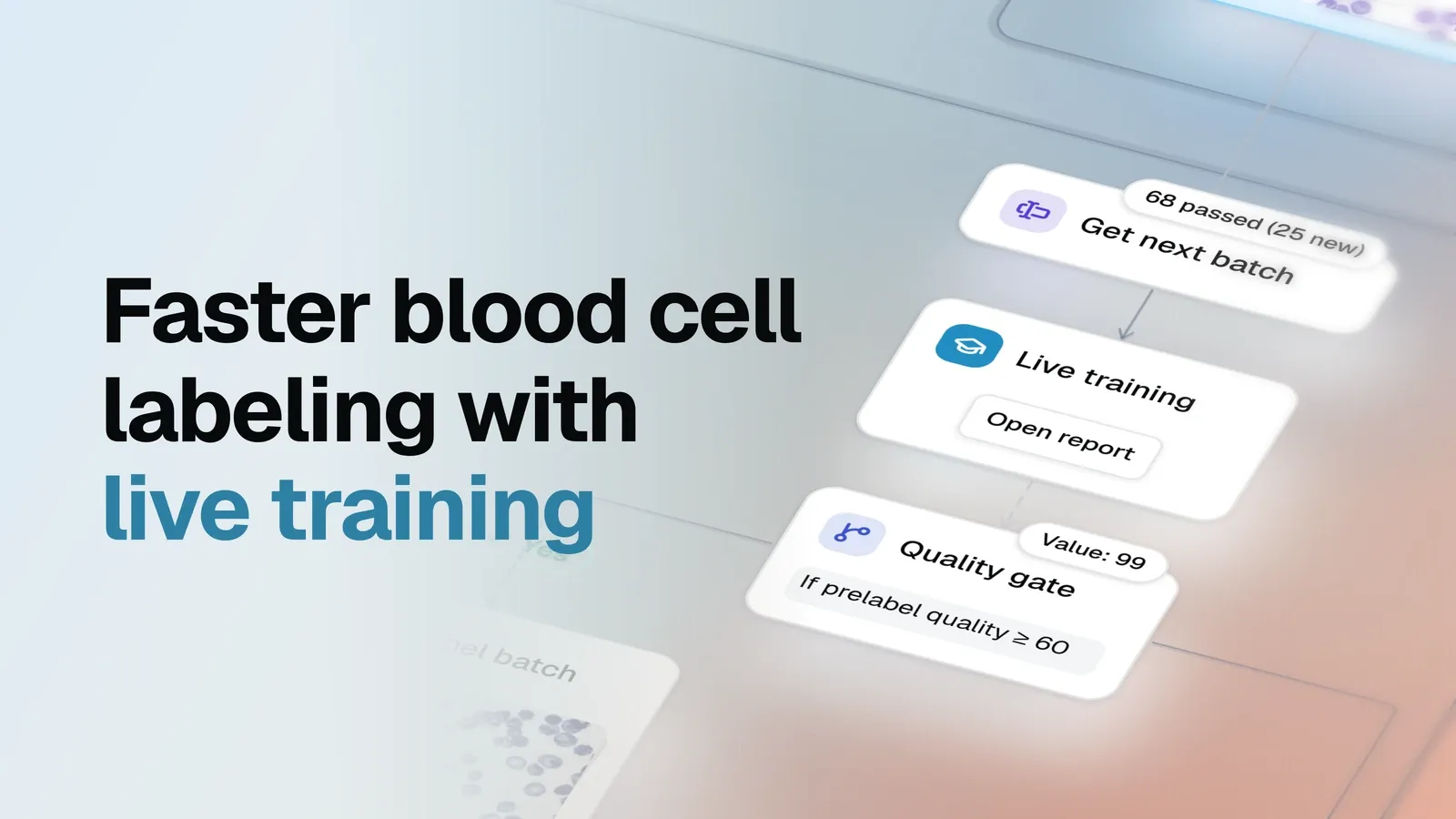
- Whole batches arrive prelabeled. The model reaches the quality it needs, and the Quality gate opens. Every new batch goes to the model at once, comes back with the boxes drawn and lands in the labeled data.
The further you go, the less there is to do: after a few images, people check boxes instead of drawing them.
1Label a few images by hand
- Labeling An expert draws every box by hand.
- Live training Each submitted image also trains the model.
2The model starts helping
- Suggested boxes The model draws boxes in the labeling tool.
- Labeling The expert fixes a few, so it goes faster.
- Live training The model keeps learning from each image.
3Whole batches arrive prelabeled
- Quality gate The model is above 60% quality, so new batches pass.
- Prelabel batch It collects a batch and sends it to the model.
- Live training The model returns boxes for the whole batch, then it moves on.
Label a few images by hand
We took the images from the public
Blood Cell Segmentation dataset on Dataset
Ninja. To keep the case simple, we label boxes instead of masks, with three classes:
red blood cell, infected red blood cell and white blood cell. The class names are plain words
on purpose: the model reads them as a text prompt, so it knows what to look for from the start.
Dataset: Blood Cell Segmentation on Dataset Ninja, MIT.
The expert opens the labeling tool and labels the first images as usual. The live training session starts after two submitted images. The model picks up the patterns quickly, and from the third image on it already helps.
The labeling tool shows the session right on the image. Before training starts, it tells you how many images are left to submit.
Then the session starts learning, and the Predict button draws the model’s boxes on the current image. The annotator keeps the good ones and fixes the rest. The Live Training menu picks the session and the confidence threshold, and No AI Assistance switches the help off at any time.
Very soon the model’s boxes need only a couple of fixes per image: the annotator adds a missed cell or changes a class and submits.
The model starts prelabeling
After 10 labeled images, the live training session reports its prelabel quality: how well it labels images it has not trained on yet. Before an image joins the training set, the model labels it first, and its boxes are compared with what the person submitted. The labeling tool shows how the model is doing as you work.
The Quality gate node watches this number. While it is below the threshold, new images go to people as they are. Once it passes the threshold, the prelabel branch opens: every new batch is prelabeled by the model before it reaches the labeling pool. In this run the threshold is 60%, and the model reached 99%.
The result
From this point, people no longer label images from scratch. Whole batches arrive with every box already drawn, and the annotator only looks them over.
The Prelabel efficiency node measures how much of this work the model does. It compares what the model drew with what the annotator submitted.
We built this public example as a demo, and after only 12 images labeled by hand the model already shows these numbers on the next 30:
The expert labeled only a few images by hand. Everything after that came from the model, so the team saves hours of drawing boxes, and the expert’s time goes where it matters. The model keeps learning from every submitted image, so the prelabels keep getting better while the team works.
Try it on your data
The Live training module works on any detection task, and it pays off most where images hold many small, similar objects, like cells, seeds, parts on a conveyor or products on a shelf. Add Live training module to your labeling graph, connect it, and let the setup wizard do the rest: an expert labels a few images, and the model takes over most of the drawing.